|
Low-Trans Fat and
Low-Carb Diet for Your PC or How to optimize Windows XP for the best
performance.
(by Rikhard Kuliyev @
FixYourWindows.com) |
|
Please see my Copyright and Warning page |
|
*Who
stole this article* |
|
Download printer friendly version of this document in
Adobe Reader format (*.pdf). (May not contain latest
updates) |
|
End Result (Hardware Specification and Performance
Metrics) |
|
Compatibility: |
|
|
| |
Windows XP
Professional/Home. Should be OK on Windows 2000/ME, some
options/features will not present. |
|
|
|
Purpose: |
|
|
| |
Unfortunately, starting from Windows
XP, most of the software and hardware manufacturers adapted a habit
of diverting user’s attention and time towards their own goals –
collecting personal information (e.g. preferences, habits),
advertisement, etc. This article is my personal answer to this
unprecedented corporate takeover.
The following set of
instructions will help significantly to improve Windows XP
performance without costly upgrades.
To shorten this article
and save your time, I’ve decided not to go into theory behind
suggested configuration changes. If you require additional
information, please search Windows Help and Support (Start ->
Help and Support) or Internet. List of related links and screen
snapshots of my test machine can be found at the end of the
document; And downloadable/printable version (in Adobe Acrobat
format) – at the top.
Your comments and recommendations are
welcomed, but I
can’t promise to respond to every message. |
|
|
|
Warning: If you would like to be able to undo the described changes,
please use System Restore utility (see Windows Help and
Support (Start -> Help and Support)) to create a
restore point first.
|
|
|
|
1. Clean Startup Folder (Start
menu) |
|
|
| |
Right-click Recycle Bin, and
select Properties. Under Global tab uncheck
Display delete confirmation dialog option. Click OK
button.

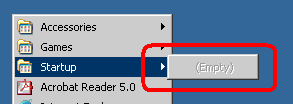
Click Start, point to
Programs (or All Programs), click Startup, and
then right-click each item in Startup and select
Delete. Your Startup should be empty.

|
|
2. Clean hidden Startup (Registry
Editor) |
|
|
| |
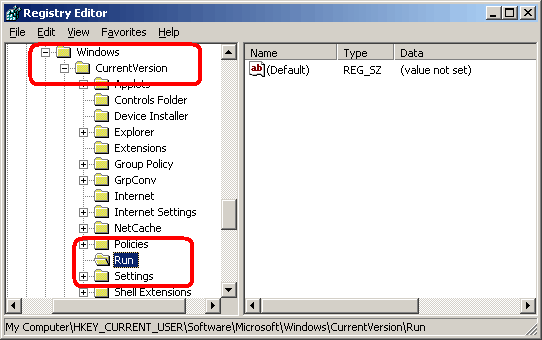
Click Start and select
Run. Type
“regedit” (omit quotation marks) in the resulting window. Click
OK button. Registry
Editor window will open.

Maximize Registry Editor
window. Click plus sign next to HKEY_CURRENT _USER, click
plus sign next to Software, plus sign next to
Microsoft, plus sign next to Windows, plus sign next
to CurrentVersion, and click folder Run to highlight
it.

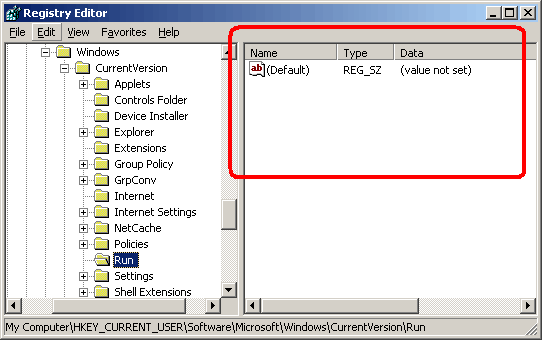
With Run folder highlighted
on the left, take a look at the right part of the
window.

All items that you see start
automatically whenever you start computer. Delete all unnecessary
entries (one by one) by right-clicking them, and selecting
Delete.
Note:
Removing items from the Run folder will not remove the
corresponding program from your computer. It will simply prevent the
program from loading automatically, and running in background,
consuming valuable resources.
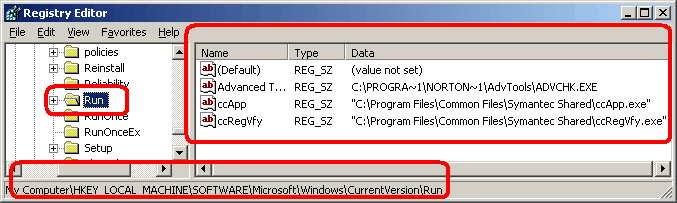
Now, repeat the same procedure for
the Run folder under HKEY_LOCAL_MACHINE:

Browse to HKEY_LOCAL_MACHINE
-> Software -> Microsoft -> Windows -> CurrentVersion
-> Run. And delete everything that you don’t want to load
automatically. As you see from Pic.6, I have a few items in
Run folder. They represent Autoprotect services of my Norton
Antivirus. You may have other antivirus/firewall applications
loading trough Run. I wouldn’t recommend removing
antivirus/firewall from Run folder, otherwise your system will not
be protected from viruses, etc. Everything else can (and should) go.
Restart computer.
Note: Here is the list of all
Registry spots that could potentially load applications on
Windows startup (you may or may not find them on your computer,
depending on version of Windows you have):
HKEY_LOCAL_MACHINE\Software\Microsoft\Windows\CurrentVersion\Run
HKEY_LOCAL_MACHINE\Software\Microsoft\Windows\CurrentVersion\RunOnce
HKEY_LOCAL_MACHINE\Software\Microsoft\Windows\CurrentVersion\RunOnceEx
HKEY_LOCAL_MACHINE\Software\Microsoft\Windows\CurrentVersion\RunServices
HKEY_LOCAL_MACHINE\Software\Microsoft\Windows\CurrentVersion\RunServicesOnce
HKEY_LOCAL_MACHINE\Software\Microsoft\Windows\CurrentVersion\Policies\Explorer\Run
HKEY_LOCAL_MACHINE\Software\Microsoft\Windows
NT\CurrentVersion\Winlogon\Userinit
HKEY_CURRENT_USER\Software\Microsoft\Windows\CurrentVersion\Run
HKEY_CURRENT_USER\Software\Microsoft\Windows\CurrentVersion\RunOnce
HKEY_CURRENT_USER\Software\Microsoft\Windows\CurrentVersion\RunServices
HKEY_CURRENT_USER\Software\Microsoft\Windows\CurrentVersion\RunServicesOnce
HKEY_CURRENT_USER\Software\Microsoft\Windows\CurrentVersion\Policies\Explorer\Run
HKEY_CURRENT_USER\Software\Microsoft\Windows
NT\CurrentVersion\Windows\load |
|
|
|
3. Remove useless programs, disable annoying
sounds and clean temporary files (Control Panel) |
|
|
|
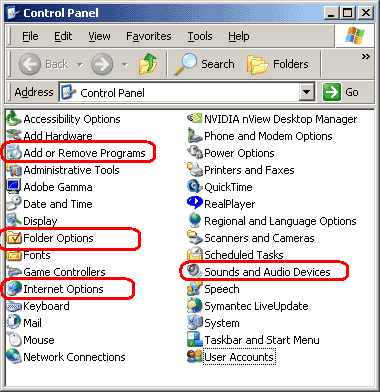
Click Start, point to
Settings, and click Control Panel (or Start
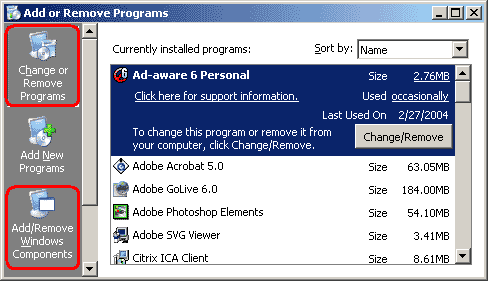
-> Control Panel). Double-click Add or Remove
Programs icon.
Note: If you don't see necessary
options, switch to Classic View (left top corner).

Scroll through the list of installed
applications, and remove the once you don’t need (restart as
needed).

Switch to the list of Windows
Components by clicking Add/Remove Windows Components
button on the left. Uncheck Indexing Service, MSN
Explorer (click Yes buton to confirm uninstall), and
Windows Messenger. Click Next button to remove
programs.
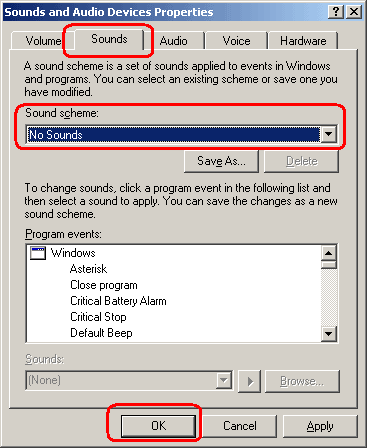
Double-click Sounds and Audio Devices icon
in Control Panel, and switch to Sounds tab.

Select No Sounds from
Sound scheme dropdown. Click No on Save
Scheme confirmation message, and click OK button to save
changes.
Double-click
Internet Options icon in Control
Panel, and click Delete
Files button.

Check Delete all
offline content box, and click OK. Click Settings
button, and set Amount of disk space to use somewhere
between 1 and 3 MB (make it 10 MB if you are using dial-up Internet
connection)

Click OK
button. (Optionally) delete Cookies and adjust History
settings.
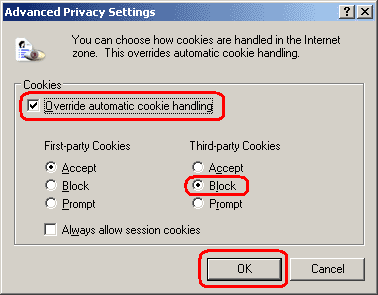
Switch to Privacy tab, and click
Advanced button (if you don’t see Privacy tab, your
Internet Explore is old, and must be updated). On Advanced
Privacy Settings dialog box click Override automatic cookie
handling, and then Block Third-party Cookies. Click
OK button. Click OK button again to save changes and
close Internet Options/Properties.

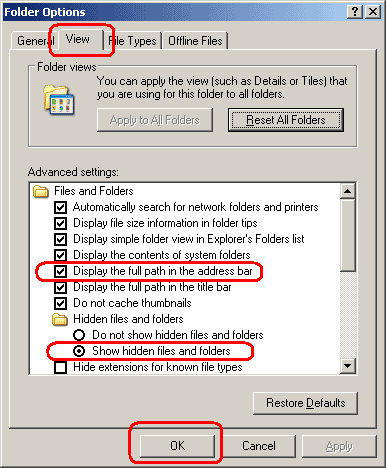
Double-click Folder Options icon.
Switch to View tab, and check Display the full path in the address bar and Show hidden files and folders options.
Click OK button. Close all programs and windows. Browse to the following temporary folders and delete their content (DO NOT delete folders themselves, only what’s inside):
C:\WINDOWS\Temp
C:\Documents and Settings\{COMPUTER USER NAME}\Local Settings\Temp
It's ok if you can't delete some (active) files.
Close all windows.
Restart computer. |
|
|
|
|
4. Disable useless services and excessive GUI
(Computer Management, System Properties) |
|
|
|
Right-click My Computer and
select Properties.

Switch to Advanced tab, and
click the first (under Performance subsection)
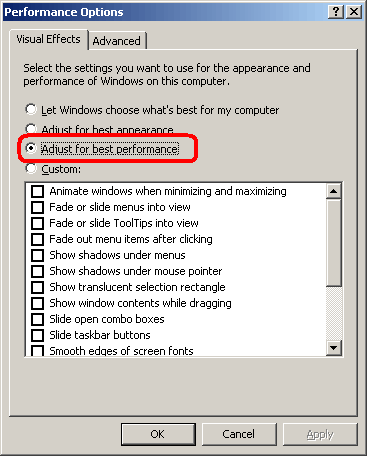
Settings button. Performance
Options window will open. Select
Adjust For Best Performance option, and click OK
button.

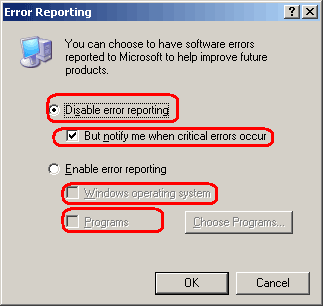
Click Error Reporting button
on the bottom, and turn off error reporting: uncheck Windows
operating system and Programs boxes, and switching to
Disable error reporting option. Click OK
button.

Now switch to Remote tab, and
click Advanced button under Remote Assistance
subsection.

Uncheck Allow this computer to be
controlled remotely, and click OK button. Uncheck
Allow Remote Assistance invitations to be sent from this
computer. Uncheck Allow users to be connected remotely to
this computer.

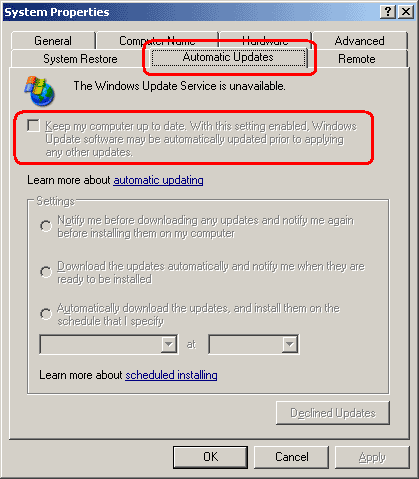
Switch to Automatic Updates
tab, and uncheck Keep my computer up to date option (or
switch to Turn off automatic updating...). Click OK
button. Restart computer.

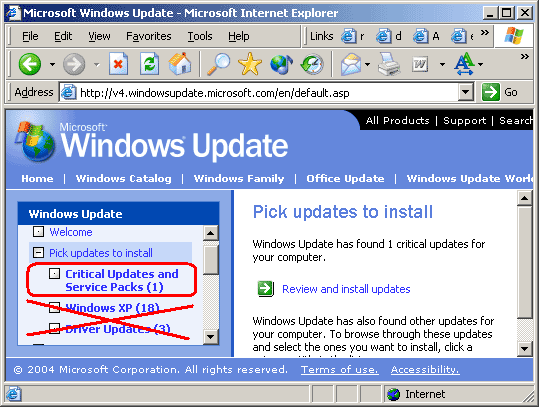
Run manual update every week or two
using Microsoft website to keep your Windows secure and bug free: Go
to http://www.microsoft.com/;
Click Windows Update, and let the page to scan your computer
for updates; Then install Critical Updates and Service Packs
ONLY (!). Occasionally check Windows XP updates, but download only
relevant fixes. I wouldn't recommend loading any Driver Updates from
here. Manufacturers’ website is a much better source of drivers.
Besides, many major pc makers install customized components, and
these “generic” drivers may not be the best match for your
particular hardware version.

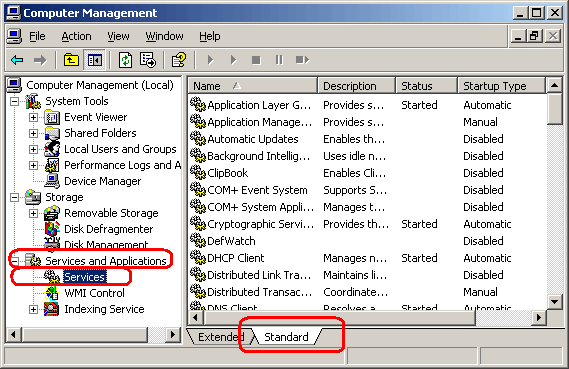
Right-click My Computer and
select Manage. Computer
Management window will open. Maximize
Computer Management window Click plus sign next to
Services and Applications, click Services, and switch
to Standard tab on the right.

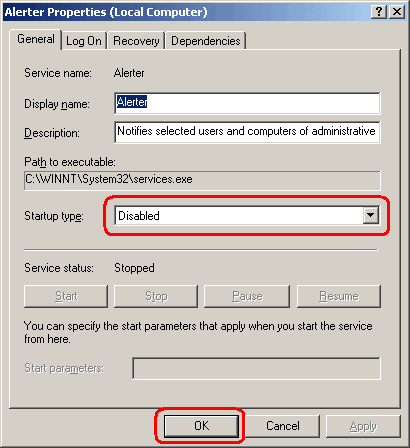
Change Startup Type for
Alerter service by double-clicking Alerter, selecting
Disabled from Startup type dropdown box, and clicking
OK button.

Now disable the following services
using the same technique:
Note: XX - service presents a significant
security threat
X - service presents a potential security threat
O - useless service
Application Management
(switch to Manual) Automatic Updates X Background Intelligent Transfer
Service O ClipBook COM+ Event
System (Set to manual if programming in MS Visual Studio
.NET) COM+ System Application (Set to manual if
programming in MS Visual Studio .NET) XX Computer Browser (if you have a
standalone pc – no network) Distributed Link Tracking
Client (if you have a standalone pc – no
network) Distributed Transaction Coordinator O Error Reporting Service (reports
errors to Microsoft) Fast User Switching Compatibility
(don’t disable if using Fast User Switching) Fax
Service (don’t disable if using computer to send receive
faxes) Help and Support (switch to
Manual) Human interface Device Access (don’t
disable if using hot buttons on keyboards or remote
control) O Indexing
Service IPSEC Services (don’t disable if using VPN,
Citrix, etc. for remote connection to your company's
network) XX
Messenger XX
NetMeeting Remote Desktop Sharing Network
DDE Network DDE DSDM O
Performance Logs and Alerts Portable Media
Serial Number O QoS
RSVP XX Remote Desktop
Help Session Manager XX
Remote Registry Removable Storage
(switch to Manual) XX
Routing and Remote Access XX Server (if you have a
standalone pc – no network) SSDP Discovery Service (if
you have a standalone pc – no network) O
System Event Notification X TCP/IP NetBIOS Helper (don’t
disable if want to share files) XX
Telnet XX
Terminal Service O
Themes X
Upload Manager X
WebClient Wireless Zero Configuration
(don’t disable if using wireless network/Internet
connection)
Close Computer Management
window. Restart computer. |
|
|
|
5. Optimize Network Settings (Local Area
Connection Properties) |
|
|
|
Right-click My Network Places
and click Properties (or Start -> Control
Panel -> Network Connections). Right-click Local
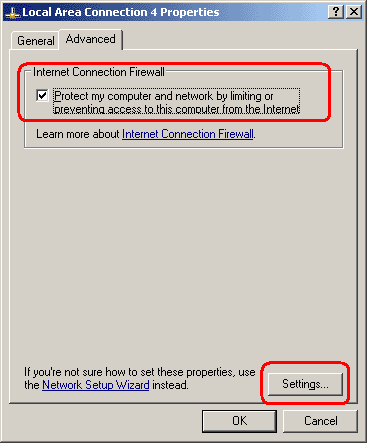
Area Connection and click Properties. Switch to
Advanced tab, and enable Internet Connection
Firewall.
Note: a) Don't enable Internet
Connection Firewall if you already using third party firewall.
b) If any of your online games or other applications lost Internet
connection after this step, click Settings button, and make
additional configuration changes per your software documentation.
Otherwise, do NOT change default settings (unless you know what you
are doing).
Click OK to save changes.

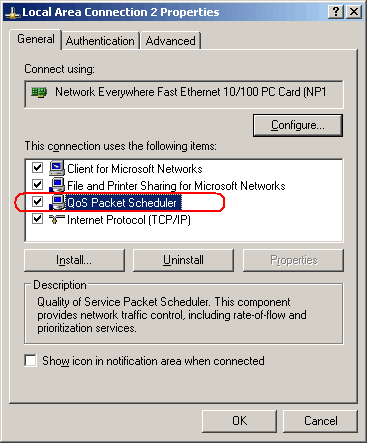
Right-click Local Area
Connection again, and click Properties. Click QoS
Packet Scheduler, and Click Uninstall button.

(ONLY!) if you have a standalone pc
(no network), or just don’t feel like sharing anything (files,
printers, etc.) with other network users (or the entire world via
Internet), uninstall Client for Microsoft Networks and
File and Printer Sharing for Microsoft Networks. Answer
No if asked to restart. Then double-click Internet
Protocol (TCP/IP), click Advanced button on the bottom.
Switch to WINS tab, and uncheck Enable LMHOSTS lookup,
and select Disable NetBIOS over TCP/IP. Click OK
twice, and then click Close. Answer Yes to restart
computer.

|
|
|
|
6. Disable Windows
Messenger |
|
|
|
(Or remove it Microsoft way – click
the following link for details http://support.microsoft.com/default.aspx?scid=kb;EN-US;q302089)
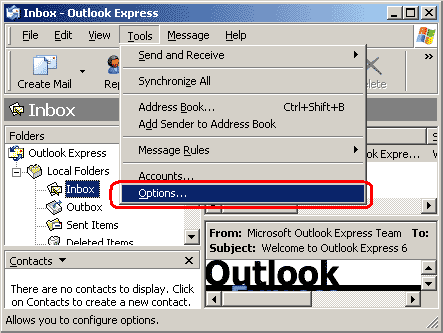
Open Outlook Express
(Start -> Programs -> Outlook Express). If you see
Mail Account setup or Internet connection wizard,
cancel it. Main Outlook Express window will open.

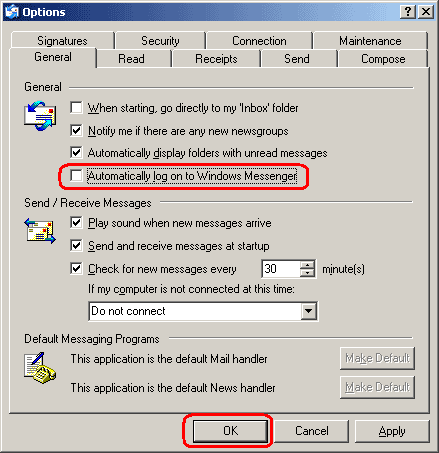
Click Tools, and select
Options. Uncheck Automatically log on to Windows
Messenger option.

Click OK button. Close
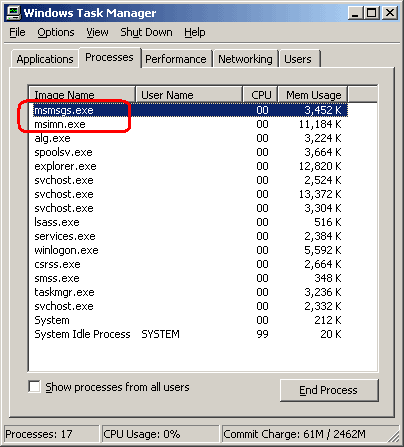
Outlook Express. Right-click Taskbar, and select
Task Manager.

Switch to Processes
tab. Find msmsgs.exe, right-click it, and select End
Process. Do the same for msimn.exe. Close Windows
Task Manager window.
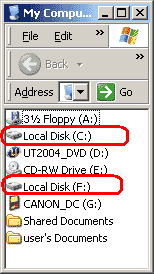
Double-click My Computer,
double-click C-drive, and double-click Program Files
folder. Find Messenger folder and rename it (Name it
anything you want. I usually add “OFF_” at the beginning, so
Messenger becomes OFF_ Messenger).
Double-click renamed OFF_
Messenger (or whatever you named it) folder.

And rename the following files
inside:
msgsc.dll msgslang.dll msmsgs.exe msmsgs.exe.manifest msmsgsin.exe rtcimsp.dll
Close all windows. Restart
computer twice. |
|
|
|
7. Defragment hard drive (may take up to 30
minutes) |
|
|
|
Click Start, select
Programs, Accessories, System Tools, and click
Disk Defragmenter. When Disk Defragmenter window
opens, select a drive in the top portion of the window, and click
Defragment button. |
|
|
|
8. Make sure you are using
NTFS (My Computer) |
|
|
|
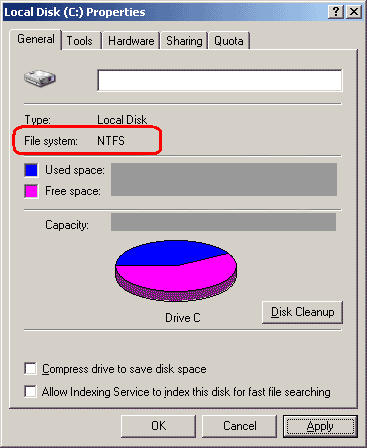
Double-click My
Computer. You should see all your drives.

Find your hard drive,
right-click it, and select Properties.

File system label must say NTFS. If you see FAT32 (common
on machines upgraded from Windows 98 and ME), you’ll
need to convert the drive to NTFS manually. Search Windows
Help and Support (Start -> Help and Support) for
Convert to NTFS. Click Cancel. Close opened
windows.
|
|
|
|
9. (Optionally) disable System
Restore (See Warning on the
first page) |
|
|
|
See Windows
Help and Support (Start -> Help and Support) on how to
Turn off System Restore. |
|
|
|
10. (Optionally) disable Virtual Memory (also
called Paging File) |
|
|
|
Don’t disable Virtual Memory
if any of the following is true:
Note: Some programs may refuse to
run without Paging File (e.g. Adobe Photoshop, some games).
However, most of the casual applications (MS Office, MS Works,
Quake III, Unreal Tournament 2003 and almost everything else)
will run just fine (well…, faster).
It’s very easy to disable/enable
Virtual Memory. Try both options, and determine the one that
fits your personal preference. See Windows Help and
Support (Start -> Help and Support) on how to disable
Virtual Memory.
Run Disk Defragmenter after
disabling/enabling Virtual Memory. Restart
computer. |
|
|
|
11. Enjoy! |
|
|
|
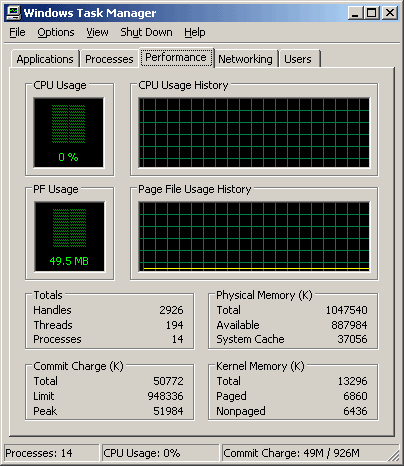
Computer Hardware
Specification: Dell, OptiPlex GX260, P4 @ 2.4GHz, 1GB PC2100,
ATI RADEON VE 32MB. |
|
Fresh install, Windows XP only
(Task Manager /Performance tab) Boot Time (POST to Desktop - 21
sec.)
|
|

|
|
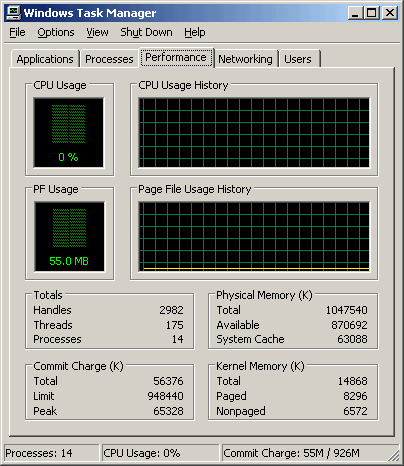
Windows XP sp1, EI 6 sp1, MS Office
2003 Pro, Adobe Acrobat 5, Ad-aware 6, Spybot-S&D 1.3,
RealPlayer, QuickTime installed
 |
|
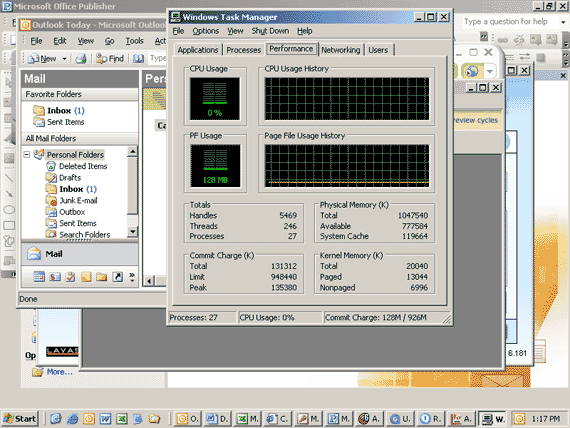
All Programs loaded
 |
|
|
|
Afterword: |
|
|
|
Don’t keep your computer on
when you’re not using it. According to 2002 Cornell University
calculations, US could switch off seven (!) power stations if TVs,
videos and computers were not left on standby.
Even if
you are not very concerned about your electric bill, and rising
number of countries we need to “liberate” to secure energy
resources, consider this:
Windows is not a non-stop operating
system. Not only it is leaking system resources, it also has a
tendency to keep some programs running in background even though you
closed them.
If you have an "always-on" internet connection,
such as a DSL or cable, keeping your box on 24x7 will tremendously
increase your chances being hacked or
infected. |
|
|
|
|
|
|
|
Links: |
|
|
|
General information: |
|
|
|
http://www.blackviper.com/ http://support.microsoft.com/ http://www.pcworld.com/
(“How-To” section) MS Resources for troubleshooting startup problems in
Windows XP |
|
|
|
Best free firewall: |
|
|
|
http://www.zonelabs.com/
(Professional version will even suppress advertisement
on web pages, and pop-up windows) |
|
|
|
Best and free Spy and Add
removal: |
|
|
|
Spybot-S&D Ad-aware |
|
|
|
More: |
|
Downloads Common Windows XP Problems and
Solutions |
| |
|
|
| |