How do I... Hunt
down hard disk resource hogs?
·
Date: June 3rd, 2009
·
Author: Brien Posey 21
 Most users find that the longer they use Microsoft Windows, the slower it
seems to run. While there are countless areas in which you can tweak Windows to
regain that lost speed, most techniques result in negligible performance
boosts. In this Daily Drill Down,
originally published as an article on March 26, 2002, Brien Posey shows you how
to focus your troubleshooting efforts to restore Windows XP to its past
performance levels.
Most users find that the longer they use Microsoft Windows, the slower it
seems to run. While there are countless areas in which you can tweak Windows to
regain that lost speed, most techniques result in negligible performance
boosts. In this Daily Drill Down,
originally published as an article on March 26, 2002, Brien Posey shows you how
to focus your troubleshooting efforts to restore Windows XP to its past
performance levels.
This
blog post is also available in the PDF format in a free TechRepublic Download.
Disk time percentage
and disk queue length
IT professionals think of hard
disk corruption or inadequate disk space as the cause of most system
performance problems, but disk time is an equally important performance factor.
Disk time is represented as a percentage of time that the hard disk is in use.
If the hard disk is running 80 percent of the time, for example, you can be
sure that system performance is suffering.
Another factor to consider is the
average disk queue length, which refers to the number of processes that are
waiting to use the hard disk. Using the disk time percentage in conjunction
with the disk queue length will tell you not only how much the hard disk is
being used but also if the heavy usage is a problem. For example, if the disk
time is 40 percent but the average disk queue length has a factor of two or
less, then the hard disk is keeping up with the demand
that’s being placed on it.
On the other hand, if the
percentage of disk time and average disk queue length are both high (above 80
percent disk time and a factor of two or more for the average disk queue
length), it means that processes are waiting for the hard disk to become
available. Anytime a process has to wait for a component to become available, a
user will experience less-than-desirable performance.
Measuring hard disk
performance
To accurately diagnose a system’s
hard disk, you need to measure the percentage of disk time and the average disk
queue length.
Begin by performing a full
defragmentation on all of the system’s partitions to ensure that all files are
contiguous and that the hard disk can perform file reads and writes optimally.
Click on the Start menu and select All Programs | Accessories | System Tools |
Disk Defragmenter.
Once you’ve defragmented all
partitions, run the Performance Monitor utility by opening the Control Panel
and clicking Administrative Tools | Performance.
Tip
When the Performance Monitor opens, select any counters
that are previously running from the bottom of the window and press Delete. Every
counter that’s running has a slight, but noticeable, impact on the system’s
performance. Therefore, the fewer counters you use, the more accurate your
measurements will be.
In the Performance Monitor
utility, follow these steps:
·
Click
the Plus icon to open the Add Counters dialog box.
·
Next,
select PhysicalDisk from the Performance Object
dropdown list, which will bring up a list of the physical disk counters.
·
Now,
select the %Disk Time counter from the list, and select the All Instances radio
button to tell the system to measure the performance of all hard drives.
·
Next,
click the Add button to add the counter to the Performance Monitor.
·
Finally,
select Avg. Disk Queue Length from the counter list, select the All Instances
radio button, and click the Add button followed by the Close button. When you
do, the performance monitor will begin analyzing the disk usage as shown in Figure
A.
Figure
A
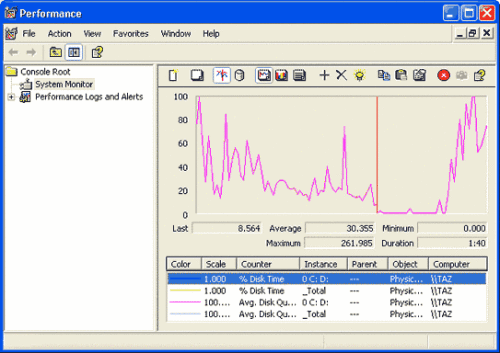
The numbers beneath the graph refer to the percent of
disk time for Drive 0.
As you look at the output, you
can see that the lines on the graph correspond to the counters that you’ve
installed. For example, in Figure A, the pink line is predominant. You can tell
by the legend that the pink line corresponds to the average disk queue length
for the C: and D: partitions of Drive 0. You can also tell the exact values of
any counter by selecting the counter that you want to examine. It’s best to
look at the actual numbers rather than the graph, as the graph can be deceptive
if the scale isn’t set correctly.
Narrowing down the
suspects
Now it’s time to figure out which
process is using all of those disk resources. The first thing that I recommend
to track down the culprit is to press [Ctrl][Alt][Delete]
simultaneously to access the Windows Security dialog box. Next, click Task
Manager to bring up the Task Manager utility, which reports on the resource
utilization of every process running on the entire system.
While disk usage isn’t one of the
factors that Task Manager normally reports, you can configure it to provide
this information.
·
First,
select the Processes tab to view the list of processes that are running on your
machine.
·
Next,
select the Select Columns command from the View menu. You’ll now see a list of
all of the resources that you can monitor through the Task Manager.
I recommend deselecting every
resource except for I/O Read Bytes and I/O Write Bytes. When you click OK,
you’ll see the number of bytes read and written by each process, as shown in Figure
B.
The trick now is to go through
the list and look for rapidly changing values. It’s normal for most of the
values to occasionally change, but if you see one that is constantly changing,
then the process that corresponds to that value is hogging your system’s disk
resources.
Figure
B
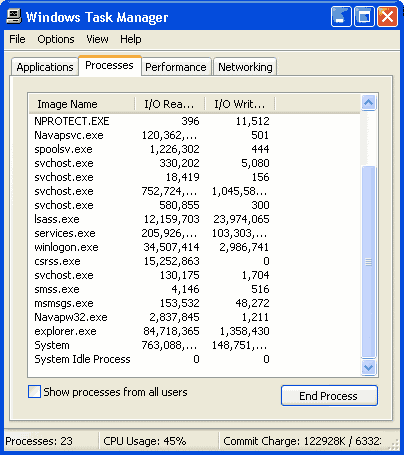
To kill a system resource hog, highlight the process and
click End Process.
If the rogue system process is a
part of the Windows operating system, there’s a good chance that the excessive
disk usage is caused by thrashing.
Swapping vs. thrashing
The
process of moving memory blocks between physical and virtual memory is called
swapping. Although swapping is inefficient, it’s a perfectly normal process in
a Windows environment. Virtual memory is hard disk space that is used as extra
memory. Basically, any time Windows needs to read something that exists in
virtual memory, it must move that memory block into the system’s physical
memory. Thrashing problems are caused by excessive physical and virtual memory
swapping.
However, if the disk usage is
traced to a non-Windows process, then you may have problems with an individual
service.
Be careful
If you
eliminate a process you feel is causing excessive disk usage, processor time
and memory will also be affected.
The usual suspects
We’ve focused on explaining how
excessive disk time usage can degrade system performance, and you have seen
some ways to track down the processes that create this problem. By using the
Performance Monitor to measure both disk time and average queue length, you can
get a sense of whether or not the hard disk is being taxed by the systems’
processes. Analyzing the Task Manager further narrows down
the possible suspects that may be causing the problem.