
| Main Page |
| Utilities |
| Passwords |
| FAQ |
| TOP
10 |
| Links |
| Awards |
| Search |
| Pad Files |
| Contact |

| ShellExView v1.13 - Shell Extensions Manager Copyright (c) 2003 - 2005 Nir Sofer |
Description
Shell Extensions are in-process COM objects which extends the abilities of Windows operating system. Most shell extensions are automatically installed by the operating system, but there are also many other applications that install additional shell extension components. For example: If you install WinZip on your computer, you'll see a special WinZip menu when you right-click on a Zip file. This menu is created by adding a shell extension to the system.The ShellExView utility displays the details of shell extensions installed on your computer, and allows you to easily disable and enable each shell extension.
ShellExView can be used for solving context-menu problems in Explorer environment. For more information, read the following article: Right-click is slow or weird behavior caused by context menu handlers
Versions History
| Date | Version | Description |
|---|---|---|
| 15/07/2005 | 1.13 |
|
| 21/06/2005 | 1.12 |
|
| 27/02/2005 | 1.11 |
|
| 25/11/2004 | 1.10 |
|
| 23/08/2003 | 1.01 | Critical bug from previous version (1.00) was fixed: In some circumstances, after disabling a shell extension and then enabling it again, the shell extension continued to be disabled, even if ShellExView show that it's enabled. |
| 05/06/2003 | 1.00 | First Release. |
License
This utility is released as freeware. You are allowed to freely distribute this utility via floppy disk, CD-ROM, Internet, or in any other way, as long as you don't charge anything for this. If you distribute this utility, you must include all files in the distribution package, without any modification !
Disclaimer
The software is provided "AS IS" without any warranty, either expressed or implied, including, but not limited to, the implied warranties of merchantability and fitness for a particular purpose. The author will not be liable for any special, incidental, consequential or indirect damages due to loss of data or any other reason.
Using ShellExView
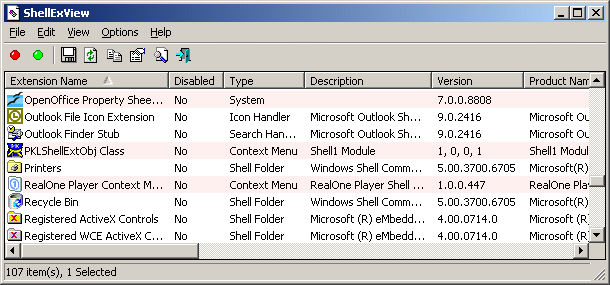
The ShellExView is a standalone executable. It doesn't require any installation process or additional DLLs. Just copy it to any folder you want, and run it. After you run it, wait a few seconds until ShellExView loads all shell extensions items.The main window of ShellExView displays the details of all shell extensions in 12 different columns:
| Description | |
|---|---|
| Extension Name | The name of the shell extension, as it appears in the Registry. |
| Disabled | Tells you whether the shell extension is disabled. |
| Type | The type of the shell extension. There are more than 10 different types of shell extensions. For more information about the types of shell extensions, see the table below. |
| Description | Description of the shell extension item. This information is extracted from the DLL file that contains this shell extension. |
| Version | Version of the shell extension item. This information is extracted from the DLL file that contains this shell extension. |
| Product Name | The name of the product that created this shell extension. This information is extracted from the DLL file that contains this shell extension. |
| Company | The name of the company that created this shell extension. |
| My Computer | Tells you whether the "My Computer" folder contains this shell extension. This column is only relevant to "Shell Folder" extensions. |
| Desktop | Tells you whether the "Desktop" folder contains this shell extension. This column is only relevant to "Shell Folder" extensions. |
| Control Panel | Tells you whether the "Control Panel" folder contains this shell extension. This column is only relevant to "Shell Folder" extensions under Windows 2000/XP. |
| Filename | The filename that contains this shell extension. |
| CLSID | The CLSID of this shell extension. |
| File Created Time | The creation time of the extension dll. You can use this field in order to find out when the extension was installed on your system. |
| CLSID Modified Time | The Modified Time of CLSID in the Registry. Only available under Windows NT/2000/XP. |
| Microsoft | Specifies whether the extension was created by Microsoft ('Yes' value) or by other company ('No' value). |
| File Extensions | Specifies a list of file extensions (like .txt, .html) that use this shell extension. |
| File Attributes | Specifies the attributes of the shell extension file. (H for hidden, R for read-only, and so on) |
| File Size | Specifies the size (in bytes) of the shell extension file. |
There are more than 10 types of shell extension, here's a small description for each type:
| Description | |
|---|---|
| Shell Folder | Provides special system folders like "Printers", "Fonts", "Recycle Bin", and more... |
| Context Menu | Provides the ability to add new items to the context menu of particular file type. |
| Drag & Drop Handler | Provides the ability to add new items to the context menu that appears when you drag a file with right mouse button. |
| Icon Handler | Provides the ability to dynamically assign icons to file objects. |
| Copy Hook Handler | This type of shell extension is called when a file is moved, copies, renamed or deleted. |
| Drop Handler | Provides the ability to control the "Drop" behavior of files. |
| Data Handler | Provides the ability to copy files/objects to the clipboard. |
| Property Sheet | Property Sheet dialog boxes. |
| Search Handler | Provides the ability to create a system search engine (Like the standard "Search For Files or Folders" module) |
| Column Handler | Provides the ability to add new columns to the details view of Explorer window. |
| Thumbnail | Provides the ability to display images in "Thumbnail" view. |
| Browser Helper Object | Provides the ability to customize and control the Internet Explorer browser. |
| IE Toolbar | Provides the ability to add new toolbars into Internet Explorer (like Yahoo! Toolbar) |
| Explorer Bar | Provides the ability to add Explorer bars to Internet Explorer. |
| URL Search Hook | Browser extension stored under Software\Microsoft\Internet Explorer\URLSearchHooks. |
| System | All other types of shell extensions that ShellExView utility cannot recognize are categorized as "System" type. |
Disable/Enable Shell Extensions
The ShellExView utility allows you to disable and enable the shell extensions components on your system. In order to disable or enable a shell extension item, select the desired item, and from the File menu (or from the pop-up menu) select the appropriate option - "Enable Selected Items" or "Disable Selected Items".Here's 2 examples of useful things that you can do with this feature:
- Context Menu: Some applications, like WinZip, CuteFTP, and others,
add some items to the context menu when you right-click on a file in
explorer window. If you disable the appropriate shell extension, you
won't get these additional menu items.
In order to locate the desired shell extension item:- Sort the extensions list by the "Type" column and look at all "Context Menu" items.
- Search the application that creates the menu you want to disable. The icon near each item can help to locate the desired shell extension.
- Shell Folder: When you enter into some special folders like "History" and "Temporary Internet Files", you don't see the real file system, but the a virtual folder that the shell extension create for you. If you want to watch the real file system inside "History" or "Temporary Internet Files", you can disable the appropriate shell extension items.
Add/Remove special folders to "My Computer" and "Desktop" folders
Some special shell folders like "Printers", "Recycle Bin", "Scheduled Tasks", "Network and Dial-up Connections", "Mobile Device", and others can be added (and be removed) to "My Computer", "Desktop", and even to "Control Panel" (Only in Windows 2000) by using the ShellExView utility.For Example: Under Windows 2000, you can add the "Printers", "Recycle Bin", and "Scheduled Tasks" folders to "My Computer". In order to do that, select the item that you want to add or remove (You can only use "Shell Folder" items) and from the File menu, select the appropriate add/remove option.
Be aware that you cannot add any shell folder to "My Computer" or "Desktop" folders. For example: adding the "Administrative Tools" folder to "My Computer" won't work properly as you might expect.
Mark Suspicious Shell Extensions
Most shell extensions use standard file extensions (.dll, .ocx or .cpl) as well as they usually don't turn on their system attribues (read-only/hidden/system). If ShellExView detect shell extension with unusual file extension or with unusual attribute (e.g: shell extension dll that is marked as hidden in the file system), it'll be marked in red color. It's recommended to deeply check these unusual shell extensions to insure that they are not unwanted malicious programs that penetrated into your system.
Command-line options
| /stext <Filename> | Save the list of shell extensions into a regular text file. |
| /stab <Filename> | Save the list of shell extensions into a tab-delimited text file. |
| /stabular <Filename> | Save the list of shell extensions into a tabular text file. |
| /shtml <Filename> | Save the list of shell extensions into HTML file. |
| /sverhtml <Filename> | Save the list of shell extensions into vertical HTML file. |
| /xml <Filename> | Save the list of shell extensions into XML file. |
| /NoLoadSettings | Run ShellExView without loading your last settings. (window position, columns size, etc. ) |
Translating ShellExView to other languages
In order to translate ShellExView to other language, follow the instructions below:- Run ShellExView with /savelangfile parameter:
shexview.exe /savelangfile
A file named shexview_lng.ini will be created in the folder of ShellExView utility. - Open the created language file in Notepad or in any other text editor.
- Translate all string entries to the desired language. Optionally, you can also add your name and/or a link to your Web site. (TranslatorName and TranslatorURL values) If you add this information, it'll be used in the 'About' window.
- After you finish the translation, Run ShellExView, and all
translated strings will be loaded from the language file.
If you want to run ShellExView without the translation, simply rename the language file, or move it to another folder.
Feedback
If you have any problem, suggestion, comment, or you found a bug in my utility, you can send a message to nirsofer@yahoo.com
| Download ShellExView in Zip file |
| Download self-install executable for installing ShellExView with uninstall support |
ShellExView is also available in other languages. In order to change the language of ShellExView, download the appropriate language zip file, extract the 'shexview_lng.ini', and put it in the same folder that you Installed ShellExView utility.
| Language | Translated By | Version |
|---|---|---|
| Polish | Szymon Ogrodnik | 1.13 |
| Spanish | Pablo de Francisco | 1.10 |
| Italian | Marco D'Amato | 1.13 |
| Galician | Xosé Antón Vicente Rodríguez http://www.iespana.es/engalego http://engalego.blogspot.com/ | 1.10 |
| French | Jean-Michel Gillion
- www.etrad.net (Updated by int24h) | 1.13 |
| Portuguese | Rui Morais | 1.11 |
| Swedish | Xina | 1.11 |
| Dutch | Peter Vroomen | 1.10 |
| Japanese | X-WORKS | 1.13 |
| Simplified Chinese | LMX | 1.13 |
| German | Arno Krumpholz | 1.12 |
| Italian | Giacomo Margarito | 1.11 |
| Slovak | emperror | 1.13 |
| Traditional Chinese | segeyi | 1.13 |
| Hungarian | Zoltan Zorgo | 1.11 |
| Hebrew | http://www.hebtrans.up.co.il/ | 1.13 |
| Czech | Jaroslav Kratochvíl | 1.11 |
| Simplified Chinese | akjz | 1.13 |
| German | Latino | 1.13 |
| Simplified Chinese | WnChina | 1.13 |
| Russian | W.W. | 1.13 |